Your Amazon keywords are in the listing — and you're still not ranking. There are 8 specific reasons why this happens. Rank Blocker diagnoses every keyword against your title, bullets, and backend search terms and gives you one clear action per keyword. No guessing. No subscription required.
The Problem
You added the keyword to your backend. Maybe even your bullets. But it's not in your title, and your competitors have it there. Amazon weights title placement far above everything else. If it's not in your title, your ranking ceiling for that term is low — regardless of everything else you've done.
Some keywords are dominated by listings with 4,000+ reviews. If you have 80 reviews and you're spending PPC budget on "yoga mat," you're burning money. You need to know which keywords are realistically winnable at your current review count — and which ones to stop pushing until you're ready.
Generic tools give you a score — "Your listing is 6/10." That tells you nothing actionable. Is the problem in your title? Your bullets? Are you chasing unreachable keywords? Without knowing exactly what's blocking each keyword, you end up guessing and wasting time on the wrong fix.
Helium 10, Jungle Scout, Keywords.am — all start at $29–$49 per month. For many sellers, that's an ongoing cost just to answer one question: "Why is this keyword not working?" You shouldn't need a monthly subscription to diagnose your own listing.
The Solution
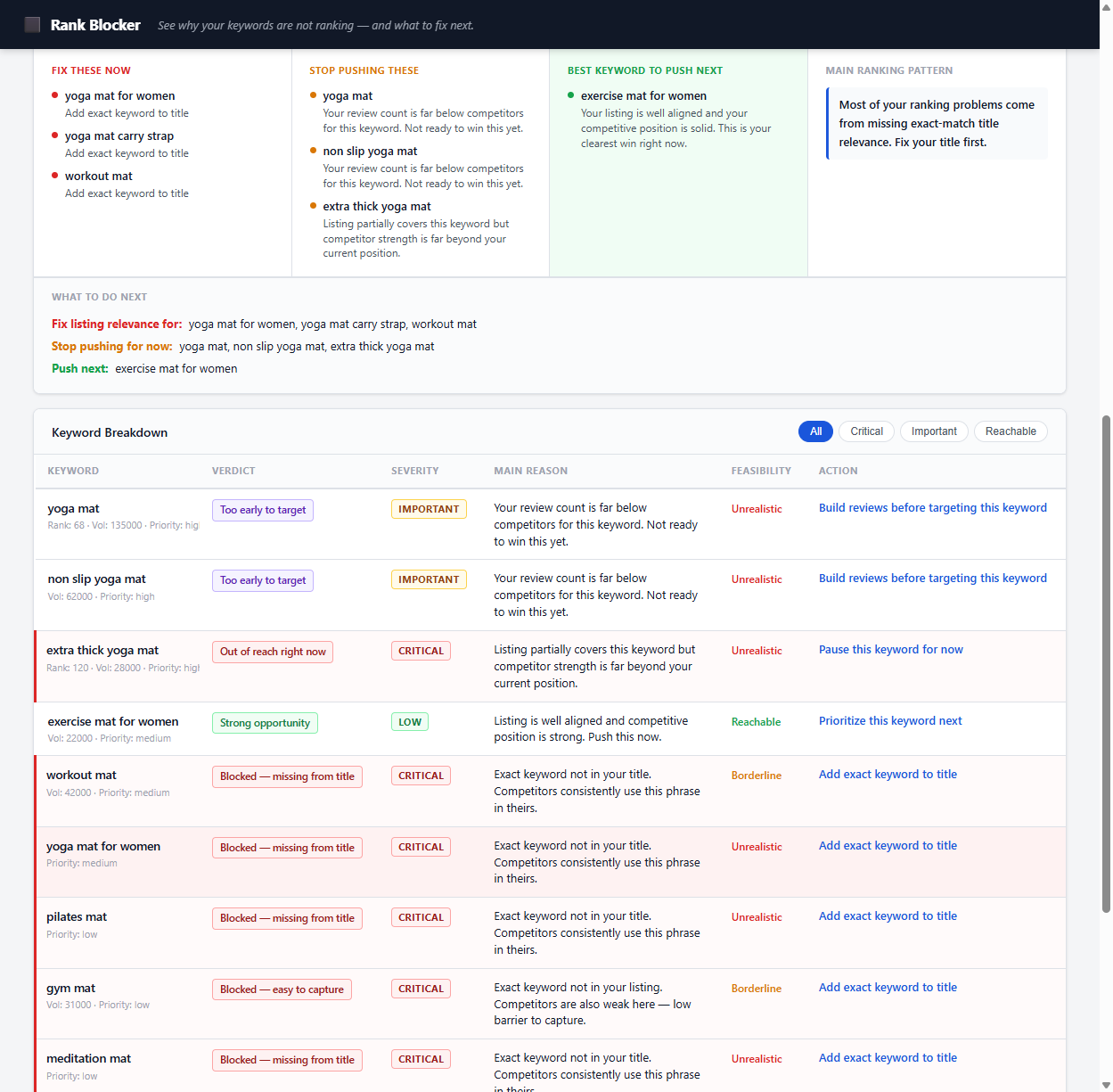
For every keyword you enter, you get a clear diagnosis in one of four states:
The exact phrase is not in your title or bullets. Competitors have it in theirs. This is a structural block — the fastest fix with the highest impact.
The keyword exists somewhere in your listing but is missing from the title. Competitors outrank you on placement. Move it up to compete.
Your listing is relevant but your review count or price puts you too far behind to win this keyword right now. Stop spending PPC here until you're ready.
Your listing is well aligned and your competitive position is solid. This is the keyword you should be pushing — with PPC and organic effort — right now.
The Complete Answer
Most sellers assume the problem is their listing copy. Usually it isn't. Here are the eight real reasons Amazon keywords fail to rank — and what's actually happening in each case.
Amazon's algorithm treats the product title as the primary relevance signal. If your target keyword is only in the backend search terms or bullet points, you are competing at a structural disadvantage against every seller who has it in their title. The ranking ceiling for a keyword that's missing from your title is low — you may appear on page 4 or 5 for that term no matter how much PPC you run. The fix is straightforward: identify which keywords are missing from your title and add them. This single change consistently produces the highest ranking lift of any optimization you can make.
Title position matters. Keywords appearing in the first 80 characters of your title carry more weight than those at the end. If your title opens with your brand name and the keyword appears at character 90, competitors who lead with the keyword will consistently outrank you for that term. This is a placement issue, not a coverage issue — the keyword exists but isn't positioned where it creates the strongest relevance signal. Reordering your title to front-load your most important keywords is often all it takes.
Amazon's algorithm heavily weights conversion probability. When deciding which listings to show for a keyword, Amazon considers how likely each result is to convert a visitor into a buyer. If your competitors for a keyword have 3,000–8,000 reviews and you have 60, Amazon's system knows statistically that showing your listing will generate less revenue per search impression. No amount of listing optimization overcomes this for highly competitive terms. The solution isn't to optimize harder — it's to identify which keywords are realistically winnable at your current review count and focus budget there instead.
When Amazon shows your listing for a keyword and shoppers consistently don't click it, the algorithm interprets this as a negative relevance signal — your listing apparently isn't what people were looking for when they searched that term. Low CTR is typically caused by a weak main image, a title that doesn't communicate the product's key benefit clearly, or a price significantly above the market median for that keyword. The longer this pattern continues, the further Amazon pushes your listing down for that term. CTR problems require image and title work, not keyword changes.
You can temporarily rank on page 1 — from PPC velocity or a launch push — and then watch organic rankings drop within weeks. This happens when your conversion rate is below the category average. Amazon ranks listings that generate revenue efficiently. If competitors convert at 12% for a keyword and you convert at 4%, Amazon will progressively reduce your organic exposure. Common causes: insufficient reviews, weak bullet points, no A+ content, or price too high relative to the value visible on the page. Fixing conversion rate is required to sustain any organic ranking gain.
If you sell a 6mm thick travel yoga mat and you target "yoga mat," you'll attract shoppers looking for 10mm studio mats, kids' mats, or printed mats. They click, don't find what they want, and leave without buying. This generates impressions and clicks with poor conversion — exactly the pattern Amazon penalizes. Highly specific keywords (long-tail) convert at much higher rates and are far easier to rank for. Ranking for "6mm travel yoga mat" is both more achievable and more profitable than chasing "yoga mat."
Many sellers assume that adding a keyword to the backend search terms guarantees indexing. It doesn't. Amazon's index isn't automatic — it depends on your backend staying within the 250-byte limit, containing no duplicate words, and including no prohibited terms. If your backend exceeds 250 bytes, Amazon silently truncates it, and any keywords past the cutoff are not indexed. You can verify indexing by searching your ASIN + keyword on Amazon. If your listing doesn't appear, it is not indexed — and you literally cannot rank for that term until you fix it.
The backend search terms field gives you 250 bytes to add unique, supplementary keywords not already covered by your title and bullets. Most sellers waste this space by: repeating words already in their title (Amazon indexes each word once regardless), adding competitor brand names (which violates Amazon's guidelines and risks suppression), or filling it with keyword variations that are too similar to provide new indexing value. Every byte spent on a repeated word is a byte that could have indexed a unique term. Audit your backend for duplicates and fill it exclusively with words that don't appear anywhere else in your listing.
Stop guessing which of these problems applies to each keyword. Rank Blocker checks all eight factors automatically and gives you one specific action per keyword.
Diagnose My Keywords →Technical SEO
Not ranking is sometimes a technical problem, not a content problem. Here's exactly how to confirm whether Amazon has indexed your listing for a specific keyword — and what to do if it hasn't.
Go to Amazon.com and type your ASIN followed by the keyword phrase into the search bar. Example:
If your listing appears in the results, you are indexed for that keyword. If it does not appear — even on page 5 or beyond — your listing is not indexed. This works for both title and backend keywords.
Backend over 250 bytes: Amazon's limit is 250 bytes, not 250 characters. Special characters and some letters count as 2 bytes. If you exceed this, Amazon silently truncates and the keywords at the end are ignored.
Duplicate words: Amazon indexes each unique word once across your entire listing. Adding "yoga" again in the backend when it's already in your title does nothing — that space is wasted.
Prohibited terms: Competitor brand names, subjective claims ("best," "cheapest"), or category-prohibited words can trigger suppression of your entire backend field, not just the specific word.
Phrases not yet crawled: New listings or recently edited backends can take 24–72 hours to re-index. Check again after 3 days if you've recently made changes.
1. Count the bytes in your backend (not characters) — use an online byte counter for accuracy.
2. Remove any repeated words that already appear in your title or bullets.
3. Remove competitor brand names and any terms prohibited in your category.
4. Trim the backend to under 240 bytes to leave a safe margin.
5. Save the listing and wait 48–72 hours.
6. Re-run the ASIN + keyword search to confirm indexing.
If the keyword still doesn't index after this, the issue is likely with the keyword itself — it may need to appear in your title to be indexed reliably.
Fix It
Once you know what's blocking each keyword, here's the exact order to fix it. These steps are ranked by impact — work from top to bottom.
Identify your 2–3 most important keywords: high search volume, directly relevant, achievable at your current review count. If the exact phrase is not in your title, add it — in the first 80 characters where possible. This is the single highest-impact change you can make to Amazon keyword ranking. Do not wait to do this.
Look at the top 10 organic results for each target keyword. If those listings average 5x or more reviews than you, pause PPC spend on those terms immediately. You are burning budget on impressions and clicks that will never convert at a competitive rate. Redirect that budget to keywords where the top 5 competitors are within 2–3x your review count — those are your actual opportunities right now.
Run the ASIN search test for each keyword in your backend. Any keyword that doesn't index needs to be investigated. Trim the backend to under 250 bytes, remove duplicates, remove prohibited terms, and re-check after 72 hours. Every indexed keyword is a potential ranking — every missing one is leaving organic traffic on the table.
If a keyword generates impressions but few clicks, your main image or title isn't compelling enough for that search context. Test a main image that better communicates the product's key benefit. Reorder your title to lead with the keyword and primary use case. Check your price against the top 5 results for that keyword — if you're more than 15–20% higher, CTR will suffer regardless of listing quality.
Organic ranking is unstable if your conversion rate is below average. Before increasing PPC spend to push velocity, work on your detail page: strengthen the first bullet point, add A+ content if eligible, ensure your images show the product in context, and verify your price is competitive. A listing that converts at 10%+ will hold organic rankings naturally. A listing converting at 3% will lose ranking as soon as ad support drops.
Work your keyword list in this order of priority: (1) Blocked + Reachable — keyword missing from title, but you can compete on reviews — highest ROI fix. (2) Weakly Aligned + Reachable — keyword in wrong place, move it up. (3) Blocked + Borderline — fix the listing, start building reviews simultaneously. (4) Out of Reach — pause these entirely until your review count grows. This sequence prevents wasted effort on unwinnable keywords while capturing fast wins first.
Fixing organic ranking while PPC burns the same broken keywords costs double. AdLeak Fixer shows which search terms are draining your ad budget while your organic position is still being repaired.
How It Works
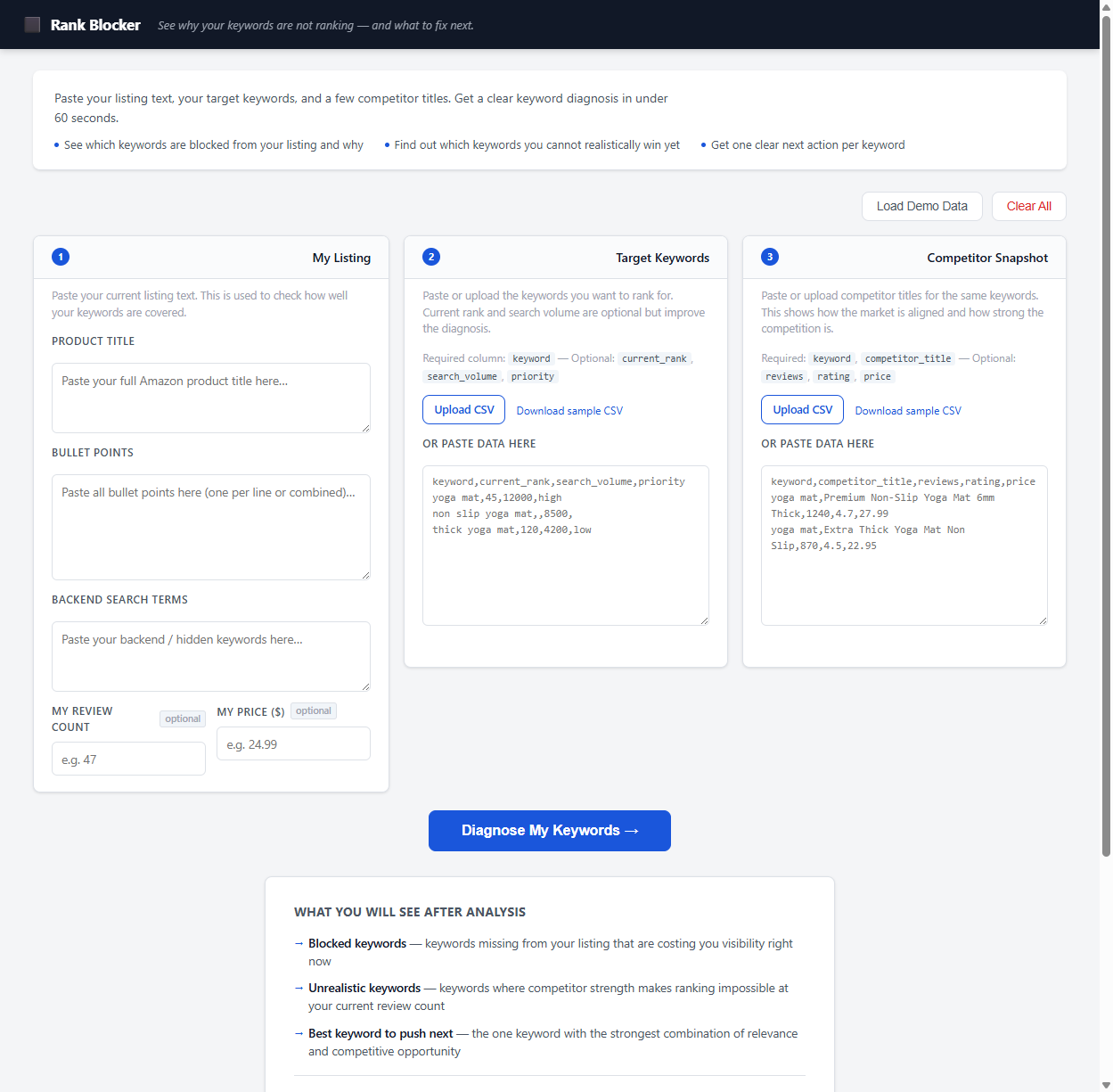
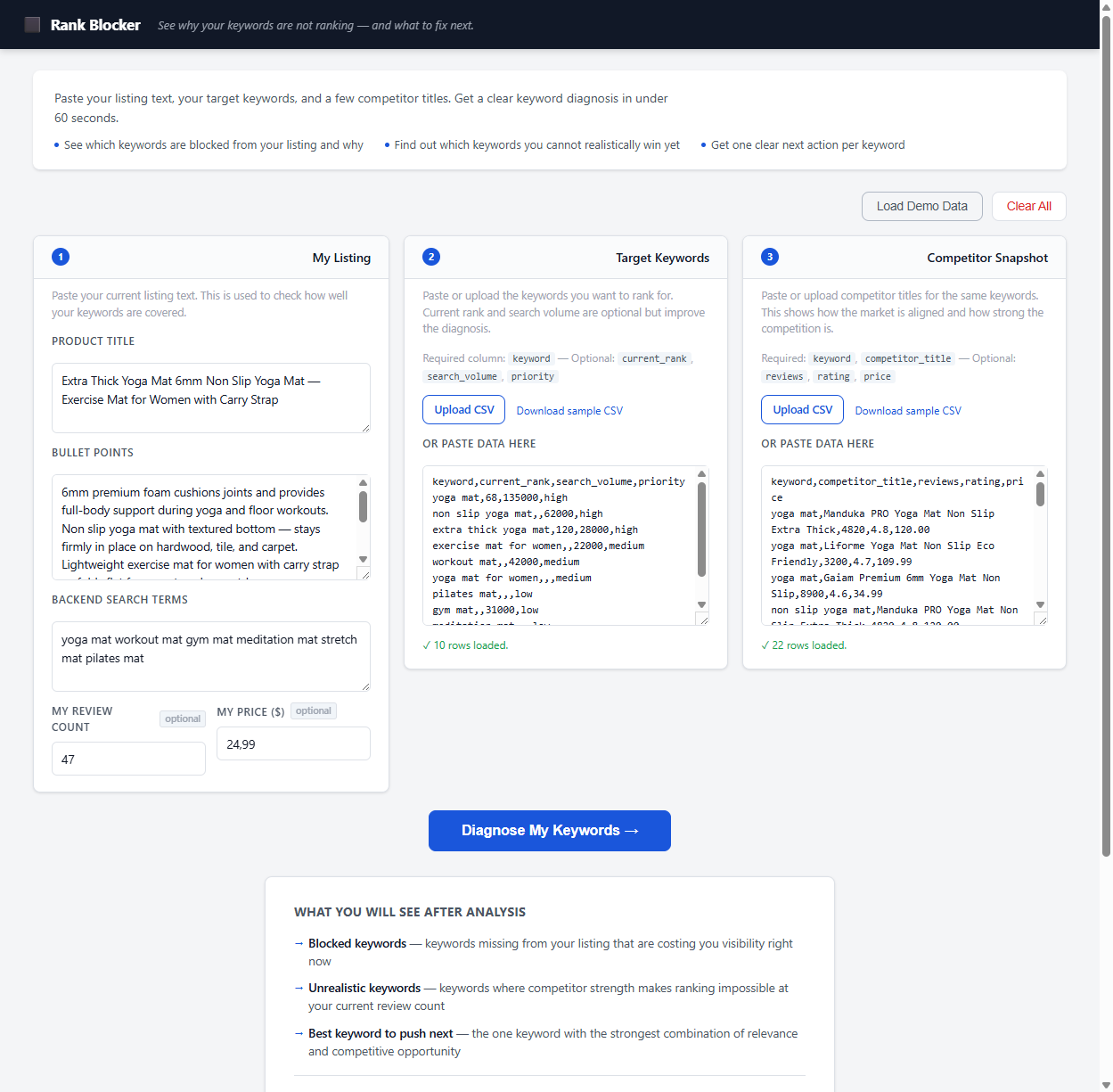
Enter your product title, bullet points, and backend search terms. Optionally add your review count and price for feasibility scoring.
Paste a keyword list directly or upload a CSV. Add competitor titles to see how the market is positioned for each keyword. All optional columns (search volume, current rank) improve the diagnosis but are not required.
Click Diagnose My Keywords →. Every keyword is scored, classified, and given one specific recommended action. The summary card shows your main ranking pattern, the keywords to fix now, the ones to stop pushing, and the single best keyword to focus on next.
See It In Action
Diagnose Yourself
These patterns in your Seller Central data point to specific SEO problems — each one maps to a fixable root cause.
Your listing is appearing in search results but shoppers are scrolling past it. This is a CTR problem: your main image isn't compelling, your title doesn't immediately answer the search query, or your price is too high relative to what shoppers expect to pay for that keyword. The algorithm is trying your listing — but buyers aren't choosing it. Fix your image and title for that specific search context.
Shoppers are clicking your listing and leaving without buying. Your conversion rate is below what Amazon needs to justify keeping you on page 1. Common causes: too few reviews relative to the price point, bullet points that don't address buyer objections, no A+ content, or a price misaligned with what that keyword's shoppers expect. Organic ranking will drop within weeks if this pattern continues because Amazon optimizes for revenue, not traffic.
Ranking without selling means a conversion problem, not a visibility problem. No-Sale Detector diagnoses exactly why your ranked listing isn't turning clicks into orders — with a specific fix priority, not a generic checklist.
You used PPC to generate sales velocity and ranked on page 1 during your launch. Then you reduced ad spend and organic rankings dropped back to page 3–5 within 2–3 weeks. This means your organic ranking was entirely PPC-supported — your conversion rate and listing relevance weren't strong enough to sustain the position without paid support. The solution is to build conversion rate and review velocity before pulling back on ads, not after.
You're running a Sponsored Products campaign for a keyword, getting conversions, but the keyword doesn't appear anywhere in your organic rankings. This almost always means the keyword is not in your title. Paid ads bypass relevance requirements — any listing can appear in sponsored results for any keyword you bid on. Organic results don't work that way. Amazon needs to see the keyword in your title to consider your listing organically relevant. Add it to your title and the organic ranking follows within 2–4 weeks of continued sales.
If certain keywords show no organic ranking whatsoever — not even page 10 — the most likely cause is that your listing is not indexed for those terms. Run the ASIN search test (your ASIN + keyword on Amazon.com). If your listing doesn't appear, you aren't indexed, and no amount of optimization will help until you fix the indexing issue first. Check your backend for byte limit overflows and prohibited terms.
Real Scenarios
These scenarios are based on the most frequent patterns in Amazon keyword audits. Each one has a specific diagnosis and a specific fix.
A seller has "yoga mat carry strap" in their bullet points and backend search terms. They've had it there for months. They rank position 47 for this term — past page 3 — and PPC for this keyword barely breaks even. Competitors in the top 5 all have "yoga mat carry strap" in the first 90 characters of their title. The seller's title leads with their brand name and the keyword appears at character 120.
A seller targets "non slip yoga mat" — 62,000 monthly searches. Their listing is well-written, the keyword is in the title, and they've been running PPC for it for 3 months. They have 47 reviews. The top 10 organic results for this keyword average 4,200 reviews. The algorithm sees their 47-review listing competing against 4,200-review listings and predicts lower conversion — so it deprioritizes the listing regardless of how good the content is. More optimization work won't move the needle here.
A seller added "gym workout mat non slip thick cushion" to their backend search terms. An ASIN search on Amazon confirms the listing doesn't appear for "gym workout mat non slip thick cushion" — or any phrase from that string. Investigation reveals: their backend field is 318 bytes (68 bytes over the limit). Amazon silently truncated the field at byte 250, and the keyword phrase was in the truncated section. It was never indexed.
What You Get
How It Compares
| Feature | Rank Blocker | Helium 10 / Jungle Scout |
|---|---|---|
| Price | One-time purchase | $29–$199 / month |
| Works offline | ✓ Fully offline | Requires internet |
| Data privacy | ✓ Nothing leaves your browser | Data sent to cloud servers |
| Per-keyword action | ✓ One specific action | Generic score or suggestion |
| Instant setup | ✓ Open index.html — done | Account creation required |
| Diagnosis focus | ✓ Why each keyword is blocked | General listing score |
Who It's For
FAQ
Paste your listing. Get your diagnosis in under 60 seconds.
Get Rank Blocker →Rank Blocker is a decision-support tool for informational purposes only. All analysis is based solely on the listing data and keyword information you provide. Results are intended to help identify potential keyword coverage issues and are not a guarantee of any ranking improvement or sales outcome. Amazon's search algorithm considers many factors beyond listing content. You are solely responsible for any decisions you make based on this tool's output.